WhatsApp · Change number · Facts verified 3 October 2026
How to Change Your WhatsApp Number
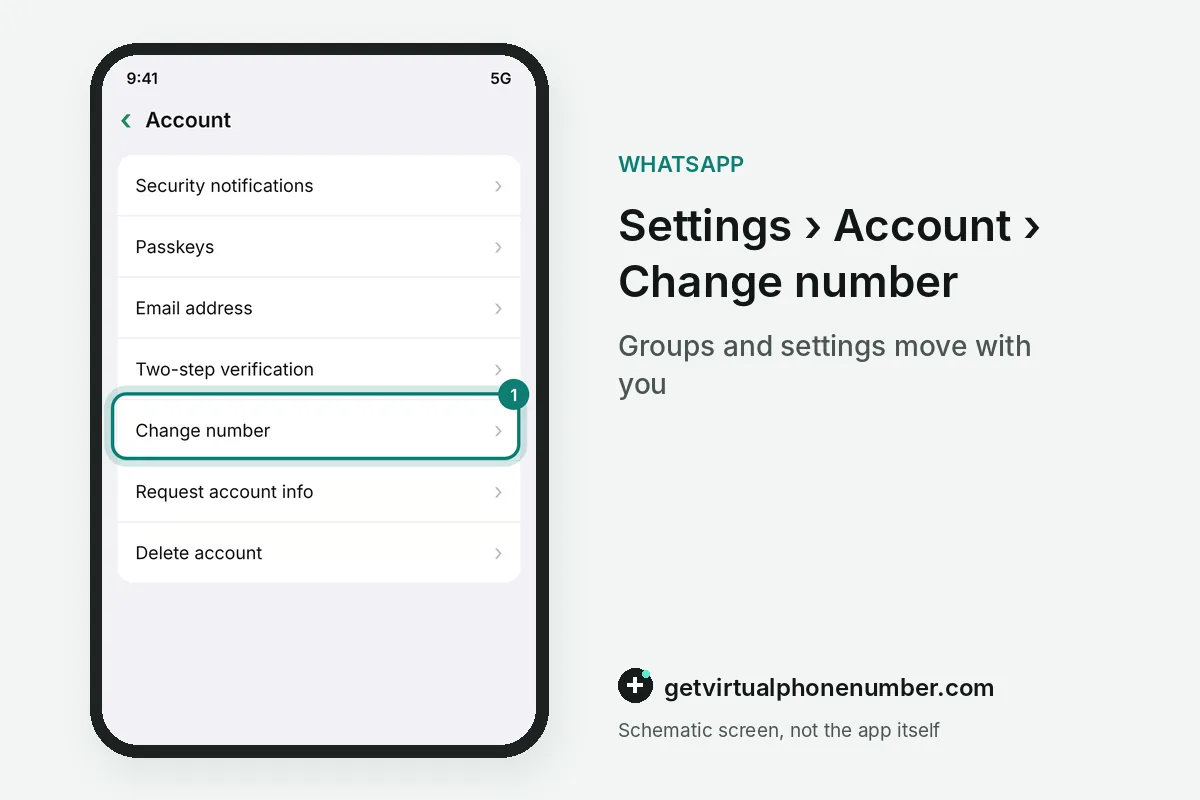
To change your WhatsApp number, open Settings, Account, Change number, enter the old and the new number and verify the new one with a code. Groups and settings move along. Chat history stays on the phone, so the whole account keeps working on the new number from the first minute.
What do you need before you change your WhatsApp number?
Changing your WhatsApp number needs an active new SIM or eSIM that receives SMS or calls, and the old number must be the one registered in the app. Insert the new SIM first. Make a chat backup in Settings, Chats, Chat backup, because a fresh copy covers any mistake during the change.
The new number should have no WhatsApp account of its own that you want to keep, since that account is replaced when you change your WhatsApp number onto it. Check the new SIM in WhatsApp first if you are unsure.
How do you change your WhatsApp number step by step?
To change your WhatsApp number, open Settings, Account, Change number and tap Next. Enter both numbers. Type the old number first and the new one second, both with country codes, then choose whether to notify contacts and verify the new number with its code.
The account then runs on the new number on every linked device, and WhatsApp Business follows the same Change number steps in its own Account menu. Linked computers stay signed in.
Does changing your WhatsApp number notify contacts?
Changing your WhatsApp number notifies your groups automatically, while contacts get a notice only if you choose so. WhatsApp offers 3 choices on the notify contacts screen. You can notify all contacts, only the contacts you have chats with, or a custom list that you pick by hand.
Contacts who get no notice still see your messages arrive in the same chat with the new number, and they can save it from there. Groups always see the change.
What happens to groups and chats when you change your WhatsApp number?
Groups move with you when you change your WhatsApp number, and every group gets a short notice that the member changed numbers. Group admin rights stay with you. Your profile, settings and chat history remain on the phone, so nothing has to be restored after the change. For example, a change made on 3 October 2026 shows up in every group as a short system message within minutes.
The old number becomes free for a new registration once the change finishes. Messages sent to the old number after the change never reach your WhatsApp account.
Why can't I change my WhatsApp number?
A WhatsApp number change fails when the new number cannot receive the code, lacks the country code or hits too many attempts. Wait for the timer. Each retry adds a longer cooldown, so check the number format and the SMS inbox before you ask for another code.
For example, entering 0202 555 0112 instead of +1 202 555 0112 sends the code nowhere. A new number that already has WhatsApp loses that account when yours moves onto it.
How do you change both your phone and your WhatsApp number?
To change both the phone and the WhatsApp number, run Change number on the old phone first and move the account afterwards. That order keeps everything together. Chats stay tied to the new number, and the move to the new phone then uses chat transfer or a Google Drive or iCloud backup.
Verify with the new number when the new phone asks, and keep the old phone until the chats appear on the new one after the WhatsApp number change. A Dual SIM phone can keep the old SIM active during the change, which helps if the new number needs a second code.
What should a business update after a WhatsApp number change?
A business should update every wa.me link and QR code after a WhatsApp number change, because those links contain the number itself. Old links keep pointing to the old number. Website buttons, email signatures and printed codes need the same update before customers notice.
For example, the number +1 202 555 0112 becomes the link wa.me/12025550112, with the country code and no plus sign or spaces. Our free WhatsApp numbers are meant for tests, never as a business line.
WhatsApp Change number steps
- Insert the new SIMMake sure it receives SMS or calls.
- Open Change numberSettings, Account, Change number, then Next.
- Enter both numbersOld number first, then the new one, with country codes.
- Pick who to notifyAll contacts, contacts you chat with, or a custom list.
- Verify the new numberType the code and finish.
 Algeria
 Netherlands
 Moldova
 Sweden
 Canada
 United States
 United Kingdom