Uber · Change phone number · Facts verified 3 October 2026
Uber change phone number: rider app, web and recovery steps
An Uber change phone number request replaces the mobile number on your rider account and is confirmed by a one-time code texted to the new number. You can change the phone number in the app under Settings or on the web at account.uber.com. If the old number is already gone, a separate recovery route starts from the sign-in screen.
How do you change your phone number in the Uber app?
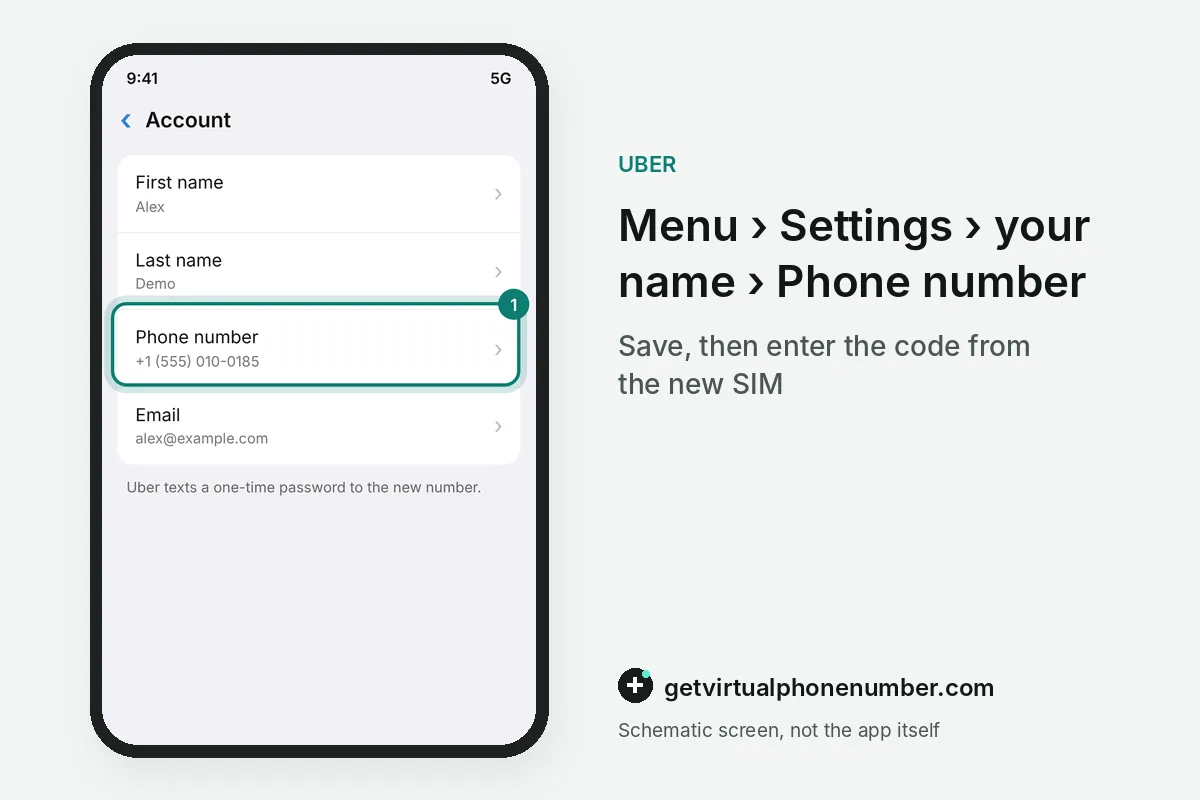
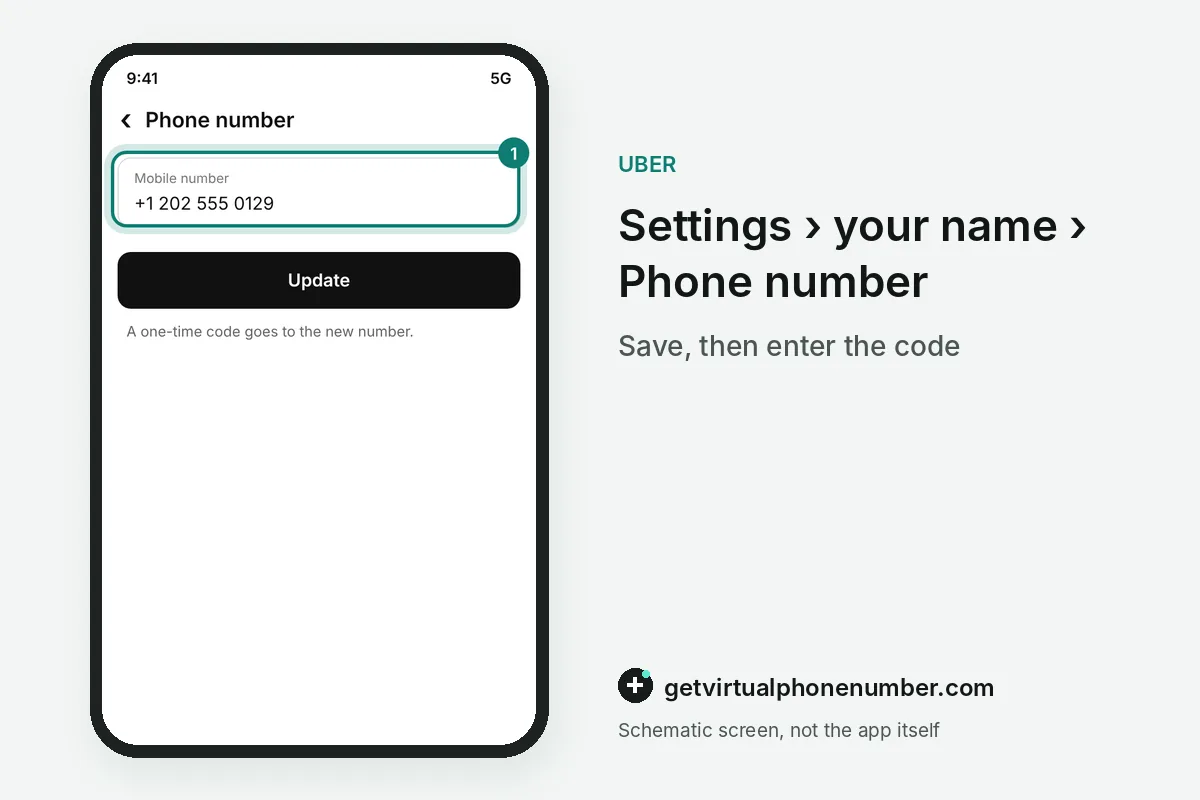
To change your phone number in the Uber app, open Settings and tap the bar with your name, phone number and email. Tap the phone number, type the new one and select Save. Uber then sends a one-time password by SMS to the new number, and the phone number change only sticks after you enter it.
A second help article routes the same phone number change through the Account section: tap your photo or scroll to Settings, then Personal Info. The steps stay the same for a foreign phone number, as long as your operator gives you coverage where you are.
For example, a rider who switches carriers on Friday can make the Uber phone number change in Settings while both SIMs still work. 1 code to the new number finishes it.
Can you change the phone number on the web?
You can change the phone number on the web at account.uber.com without opening the Uber app. Sign in, select Account Info on the left, choose Phone number and follow the prompts, then tap Save or Update. The one-time password for the new phone number still arrives by text.
During a phone number change, remember that Uber staff will never call, text or email to ask for your password, a verification code or banking details. Anyone asking for that code should be treated as a scammer, and Uber Help has a separate article on spotting phishing.
How do you change the number after losing the old one?
To change the phone number after losing the old one, open the Uber app and tap Changed your mobile number below the Mobile Number box on the Get Started page. Follow the verification and update prompts from there. This is the route riders get when texts cannot reach the old number anymore.
When that path fails, the Uber Help form for lost numbers asks for proof that the account is yours. Expect to give your name, the new number, the current number and the email on the account. The form also asks for the first 6 digits of a card on file. It also wants a screenshot of the new number from your device settings.
Why can't I update my phone number on Uber?
A phone number update fails for a few known reasons: a mistyped new number, a verification text that never arrived, or more than one account. Check every digit first, since the help pages repeat that advice. If an error or a missing code persists, the Uber Help form I can't update my phone number collects the details for support.
A phone number change can also spread across linked accounts. A driver or delivery account can be linked to your rider or Uber Eats account, so changing the number on one changes it on both. Uber recommends one account for rides and Uber Eats, and Uber code not received covers texts that never arrive.
What if the new phone number is already in use?
If the new phone number is already in use, you have probably registered an Uber account with it before. Sign in with that number to check, then decide which account to keep. The one-account advice applies here too.
If you never registered that number, the Uber Help form my email or phone number is already in use takes the requested number and a contact email. An automated message then asks you to confirm the address before an agent replies. Drivers are pointed to a separate update page.
What goes wrong with an Uber phone number change?
One avoidable phone number change mistake is letting the old number lapse before the switch is confirmed. The recovery form then asks for card digits and screenshots, so change the number in Settings while both phones still work.
When you change the phone number, pick one only you can read, such as your own SIM or a private number (coming soon). Public lines from the Uber numbers page suit a throwaway test sign-up and nothing you pay with.
Change your phone number in the Uber rider app
- Open SettingsOpen the app menu and tap Settings.
- Open your detailsTap the bar that shows your name, phone number and email.
- Edit the numberTap the phone number and enter the new one.
- SaveSelect Save to request the verification text.
- Enter the OTPType the one-time password sent to the new number to confirm the change.
Sources
- My email or phone number is already in use | Driving & Delivering | Uber Help
- How to update my phone number or email? | Riders | Uber Help
- Actualizar información personal | Establecimientos y restaurantes | Ayuda Uber
- Updating personal information | Merchants & Restaurants | Uber Help
- I can't update my phone number or email | Riders | Uber Help
- No puedo actualizar mi número de teléfono o mi correo electrónico | Usuarios | Ayuda Uber
 Canada
 United States
 Netherlands
 Sweden
 Algeria
 Philippines
 Sri Lanka
 Slovenia
 United Kingdom