Telegram · Two-step verification · Updated 3 October 2026
Telegram Two-Step Verification: How to Set It Up
Telegram two-step verification is an optional cloud password that Telegram asks for after the login code whenever your account signs in on a new device. Setup takes about 2 minutes in Privacy and Security. A stolen login code then stops at the password screen, so an attacker who reads your SMS still sees none of your chats.
How does Telegram two-step verification work?
Telegram two-step verification works by adding a second secret, the cloud password, to the one-time login code sent by SMS or in the app. Both are needed on every new device. Telegram added two-step verification in April 2015. The app checks the password with the Secure Remote Password protocol, so the password never travels in readable form.
Telegram two-step verification leaves devices that are already signed in exactly as they were, and nothing changes in your chats, contacts or groups. Only new logins meet the extra password screen.
What does Telegram two-step verification protect against?
Telegram two-step verification protects against logins made with your code by someone else, after a SIM swap, a forwarded SMS or a fake support chat. Each of these attacks ends at a password screen. Telegram's own FAQ suggests the cloud password to anyone who doubts their mobile carrier or fears that text messages can be read by others.
Telegram two-step verification matters most during a SIM swap, when a carrier moves your number to a new SIM card at an attacker's request. Every SMS login code then reaches that person, while the cloud password stays with you.
How do you turn on two-step verification in Telegram?
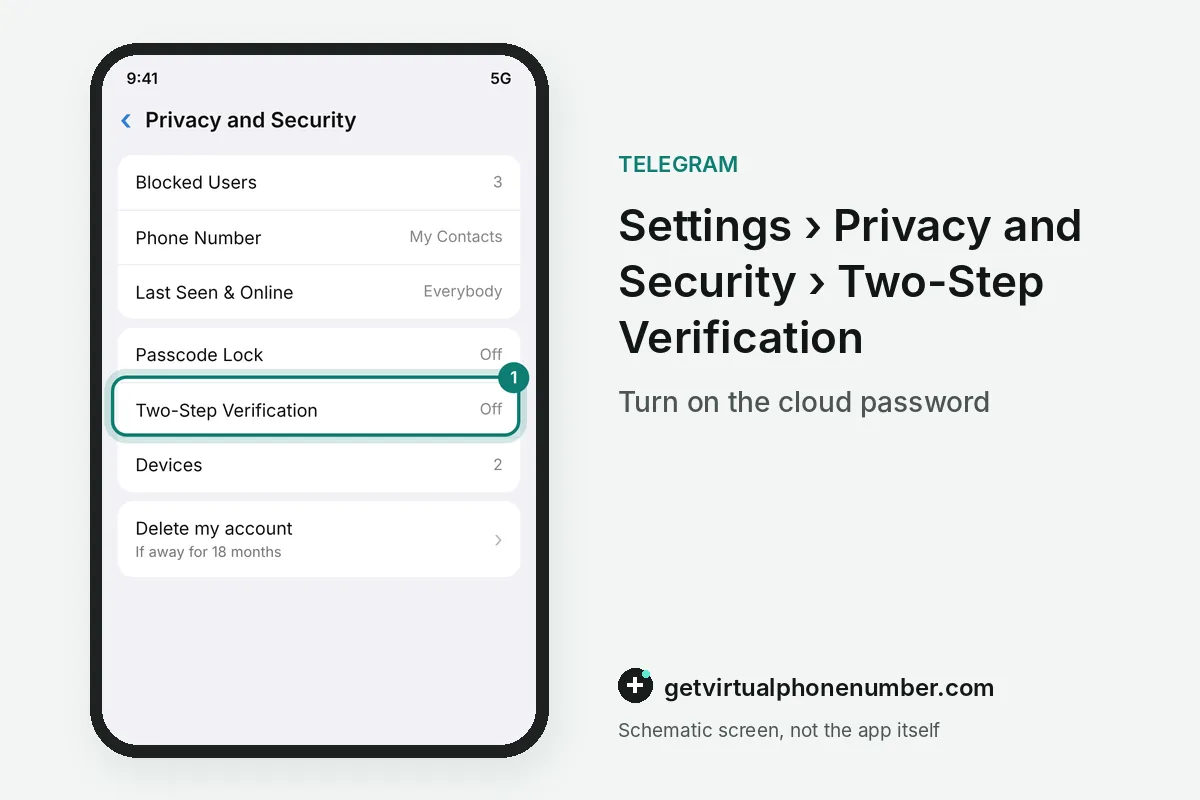
To turn on two-step verification in Telegram, open the app and go to Settings through the menu icon or the settings gear. Then tap Privacy and Security, then Two-Step Verification. Choose Set Password, type a long passphrase twice and add a hint that reminds you of the password without giving it away to anyone else.
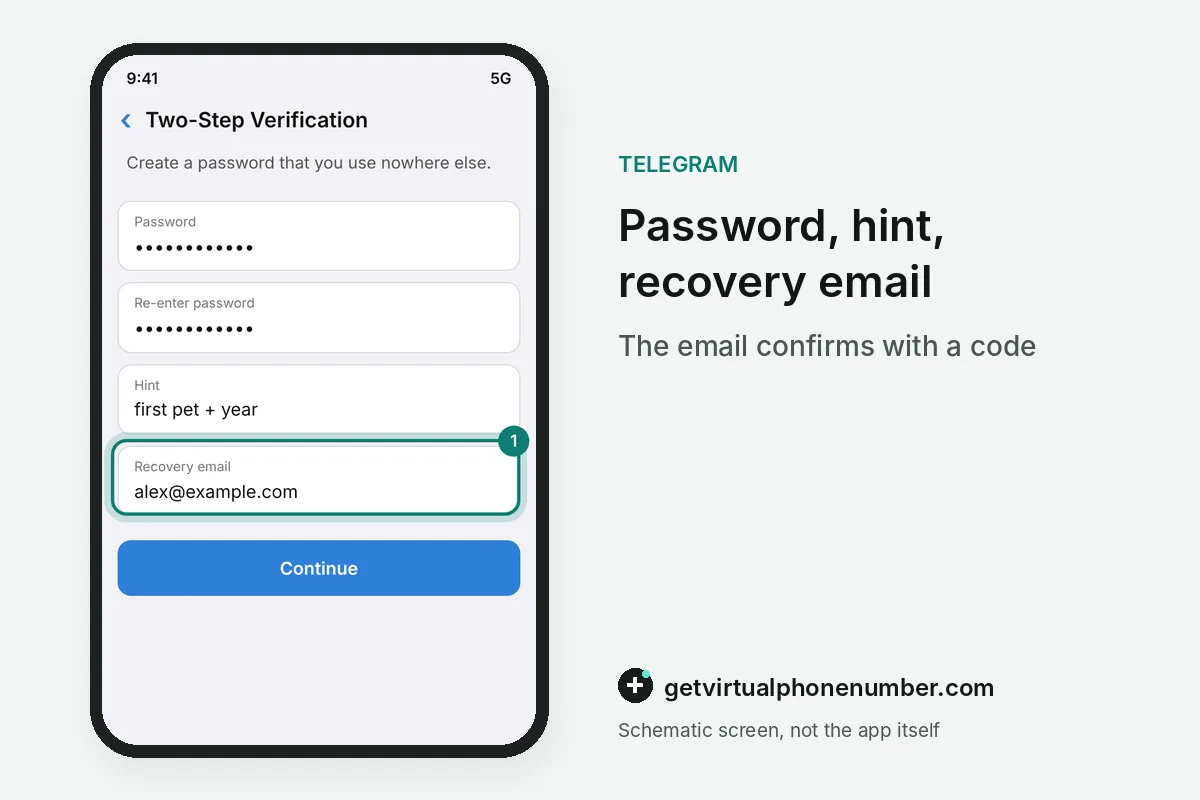
Telegram then offers a recovery email and mails a confirmation code to that address, and the cloud password becomes active as soon as you enter the code. Android, iPhone and Telegram Desktop share the same Two-Step Verification menu.
Should Telegram two-step verification have a recovery email?
A recovery email belongs in every Telegram two-step verification setup, because it is the only quick way back after a forgotten cloud password. Telegram confirms it with a code. Use a mailbox you will keep for years, since the forgot Telegram password guide shows how slow the other routes are.
For example, a passphrase of 5 random words protects Telegram two-step verification far better than an 8-character password reused from an old email account. Protect the recovery mailbox with its own strong password, because whoever controls that inbox can remove your Telegram cloud password.
Is Telegram two-step verification the same as Passcode Lock?
Telegram two-step verification and Passcode Lock are separate settings in the same Privacy and Security menu, and each one guards a different door. Passcode Lock protects one device. The cloud password works on Telegram's servers and covers every new login, while Passcode Lock asks for a local code, fingerprint or face scan before the app opens.
Turning on both settings gives the strongest protection for a phone that other people sometimes pick up at home or at work. The table sets the Telegram security settings side by side.
| Setting | Works on | Stops | Where to set |
|---|---|---|---|
| Two-Step Verification | Telegram servers, every device | Logins with a stolen code | Privacy and Security |
| Passcode Lock | One phone or computer | Someone opening the app on that device | Privacy and Security |
| Session auto-end | Your session list | Forgotten old logins | Devices |
How do you see active sessions in Telegram?
To see active sessions in Telegram, open Settings, then Devices, which lists every signed-in phone, tablet and computer. Each entry shows the app and an approximate location. A session you do not recognise can be ended with one tap, and Terminate All Other Sessions signs out everything except the device in your hand.
Telegram posts a login alert from its official service account whenever a device signs in, and with two-step verification on, that device also needed your cloud password. Unknown alerts mean the password leaked as well.
Why can an account with two-step verification still be at risk?
An account with Telegram two-step verification is still at risk when the cloud password is short or reused from another site. Leaked passwords get tried first. Pick a passphrase of several unrelated words, keep it in a password manager and never type it into a bot, a website or a chat that asks for it.
Telegram two-step verification cannot close sessions that are already open, so old logins are the second risk. Settings, Devices can end idle sessions automatically after 1 week to 6 months.
How do you turn off Telegram two-step verification?
To turn off Telegram two-step verification, return to Privacy and Security, open Two-Step Verification and type the current cloud password. Turn Password Off removes it. The same screen changes the password, the hint or the recovery email, and every change takes effect on all of your devices at the same moment.
Keep the password on even for throwaway test accounts made on our free Telegram numbers, because other visitors can read new login codes on those public pages. Two-step verification keeps those visitors out of your test account.
Telegram two-step verification steps
- Open Privacy and SecurityIn Settings, tap Privacy and Security, then Two-Step Verification.
- Create the cloud passwordEnter a long passphrase twice and add a hint that does not reveal it.
- Add a recovery emailType an email you control and enter the code Telegram sends there.
- Check active sessionsOpen Settings, Devices and end any session you do not recognise.
 Algeria
 Netherlands
 Moldova
 Sweden
 Canada
 United States
 United Kingdom