Amazon · Two-step verification · Facts verified 3 October 2026
Amazon two-step verification: setup, codes and recovery
Amazon two-step verification is an optional login setting that asks for a unique security code in addition to your password when you sign in. The code arrives by text message or comes from an authenticator app. You switch it on or off under Login and Security.
What does Amazon two-step verification add to a login?
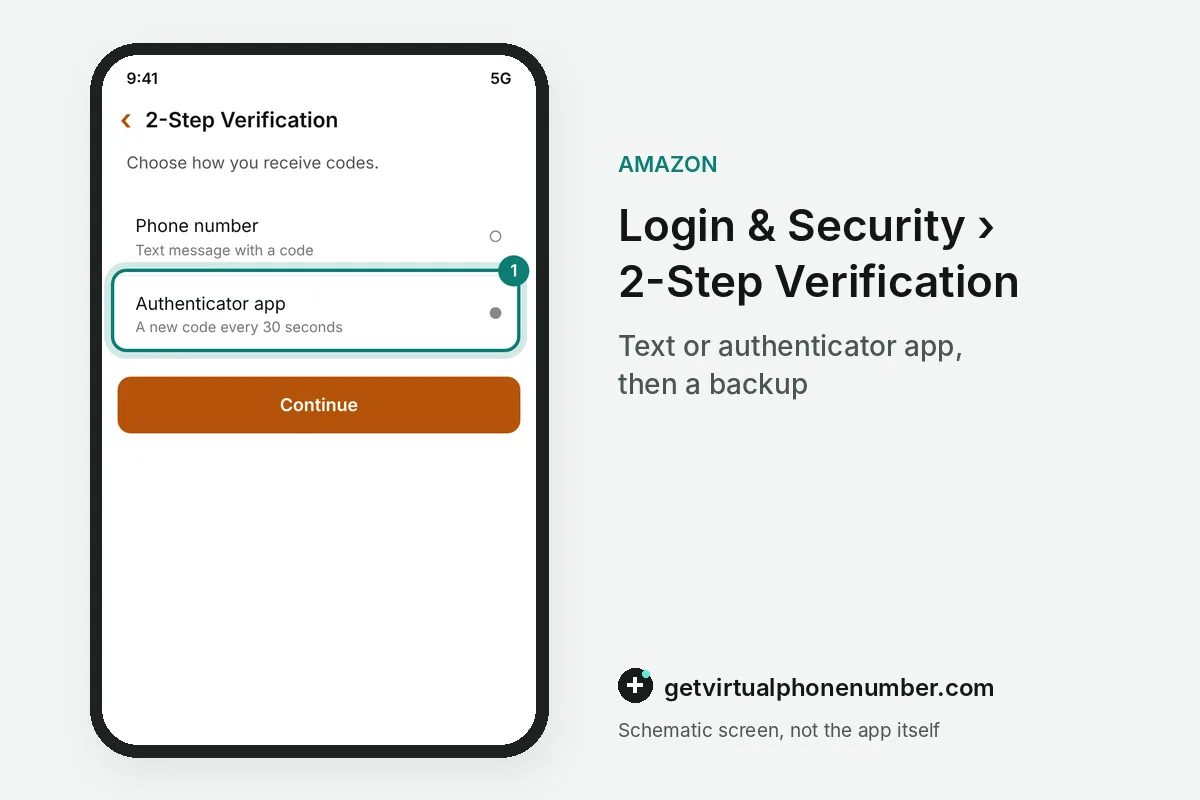
Amazon two-step verification adds a second proof after the password, a security code sent at each login. When you sign up, you choose between a text message and an authenticator app as the source of that code. Both the code and the password are then required to get in.
Amazon two-step verification protects orders, saved cards and Prime with that second code. For example, a password leaked from 1 other site still fails at the Amazon login. The thief has no code from your phone or app.
Both checks must pass. A trusted laptop or a registered backup phone keeps the Amazon account reachable when the main phone is lost, broken or handed back to an employer.
How is it different from the extra sign-in check?
The extra sign-in check is something the store adds by itself when a login looks unusual, while two-step verification is a setting you turn on. That check appears after cleared cookies or a sign-in from a new browser, device or location. It may ask for a six-digit passcode, an approval in the shopping app or an answer to a security question.
Keep app notifications switched on, so those approval requests reach you. Two-step verification, by contrast, asks for its code at login as long as the setting is on. Both can run on the same account at once.
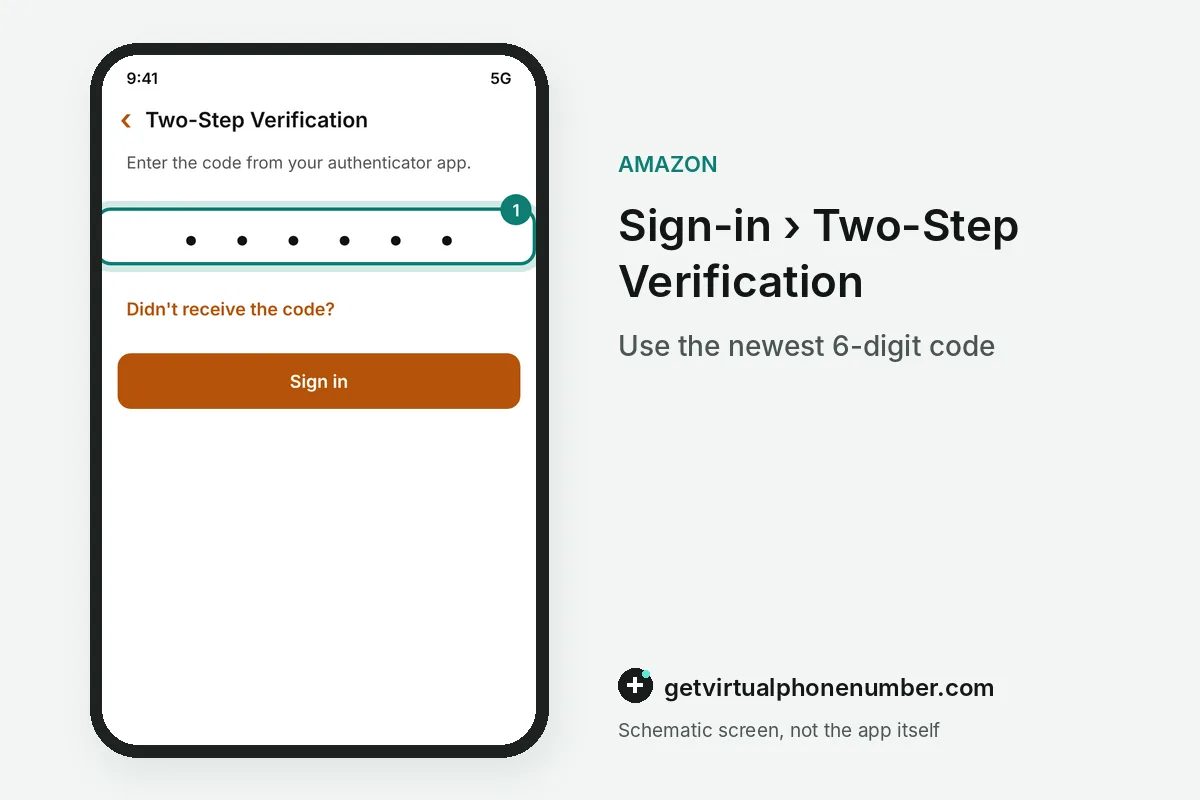
Next to Amazon two-step verification, the extra sign-in check asks for a 6-digit passcode when a login looks unusual. An authenticator app for two-step verification shows a new code every 30 seconds. Use the newest one.
What can I do if Amazon Two-Step Verification isn't working?
If two-step verification isn't working on a new or untrusted device, the device help page describes a fallback named Alternate Sign-in. Enter your email and password, wait for the security code, then add it to the end of the password and submit again. A password like amazon123 with code 45678 becomes amazon12345678.
Devices signed in this way cannot be saved as trusted, so two-step verification asks again next time. If no code arrives at all, work through the missing code checklist before you start a recovery.
How do you recover access after two-step verification fails?
You recover access after two-step verification fails by proving who you are through a dedicated recovery route. First try a registered backup method or a trusted device. If neither works, sign in with your password, a passkey or a sign-in code, select Didn't Receive the Code on the security code screen and choose Two-Step Verification Account Recovery.
The two-step verification settings stay locked until that check succeeds, since the store will not change them for an unverified person. Once you are back in, open Login and Security and switch the method to a phone or app you still hold. Then add a backup.
What happens when two-step verification locks out a seller?
When two-step verification locks out a seller, orders keep coming in while the owner cannot sign in to print labels. In one seller forum thread, the carrier had changed the seller's number, so every two-step verification passcode went to an inactive line. Any shopper with an old SIM can hit the same dead end.
A staff reply in that thread pointed to the page for recovering an account after two-step verification fails. Amazon staff said the verification typically takes 1 to 2 days and ends with an email confirmation. Sellers who switch carriers should update the second step before the old number stops working.
What goes wrong once Amazon two-step verification is on?
Relying on a single method is the first two-step verification mistake to avoid. Add a backup phone or an app before two-step verification ever needs it. Tying the setting to a work phone you will hand back one day is another. The change phone number guide covers moving it.
Never put one of our free Amazon numbers behind two-step verification on a profile that holds saved cards or past orders, since anyone can read that inbox. A private number (coming soon) or your own phone keeps those codes to you. If someone may already have your password, see the hacked account guide.
Turn on two-step verification for your Amazon account
- Open Your AccountSign in to the store and open Your Account from the Account and Lists menu.
- Choose Login and SecuritySelect the Login and Security tile, the page that lists your name, email, mobile number, password and the Two-Step Verification row.
- Pick the methodText or app.
- Follow the promptsFinish the on-screen steps.
- Add a backupRegister a second method as well, so a lost or replaced phone does not end your access to orders, Prime and saved payment cards.
Sources
- What is Two-Step Verification? - Amazon Customer Service
- Recover Your Account after Two-Step Verification Fails - Amazon Customer Service
- Resolve Amazon OTP and Two-Step Verification Issues - Amazon Customer Service
- About Multi-Factor Authentication - Amazon Customer Service
- About Passkey - Amazon Customer Service
- Phone Number Change / Cant login
 Canada
 United States
 Netherlands
 Sweden
 Algeria
 Philippines
 Sri Lanka
 Slovenia
 United Kingdom