Gmail · 2-Step Verification · Facts verified 3 October 2026
2-Step Verification on a Google Account: setup, methods and backups
2-Step Verification for a Google Account is a second check after your password. The check can be a tap on a Google prompt, a security key or a one-time code from Google Authenticator. A leaked or phished password alone then stops at the second screen. The sections below cover setup, the main 2SV methods and the backups that save you when the device is gone.
What does Google 2-Step Verification protect against?
Google 2-Step Verification protects your sign-in against passwords that leaked from another site or were typed into a fake login page. It pairs something you know, the password, with something you have, such as a signed-in device, a hardware security key or a printed sheet of backup codes. A hijacker holding only the password stops at the 2-Step Verification screen.
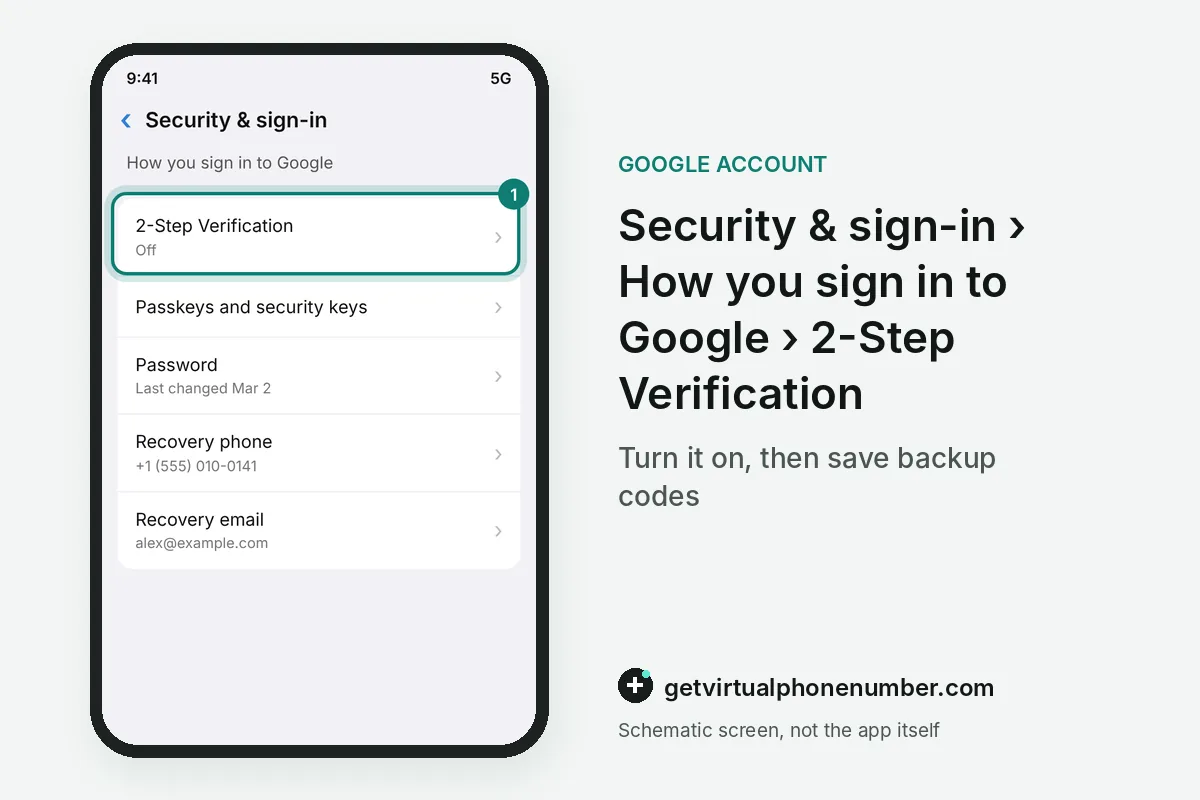
All 2SV settings sit on one page. Open Security & sign-in, choose 2-Step Verification under How you sign in to Google, and add or remove each method right there.
How do Google backup codes work?
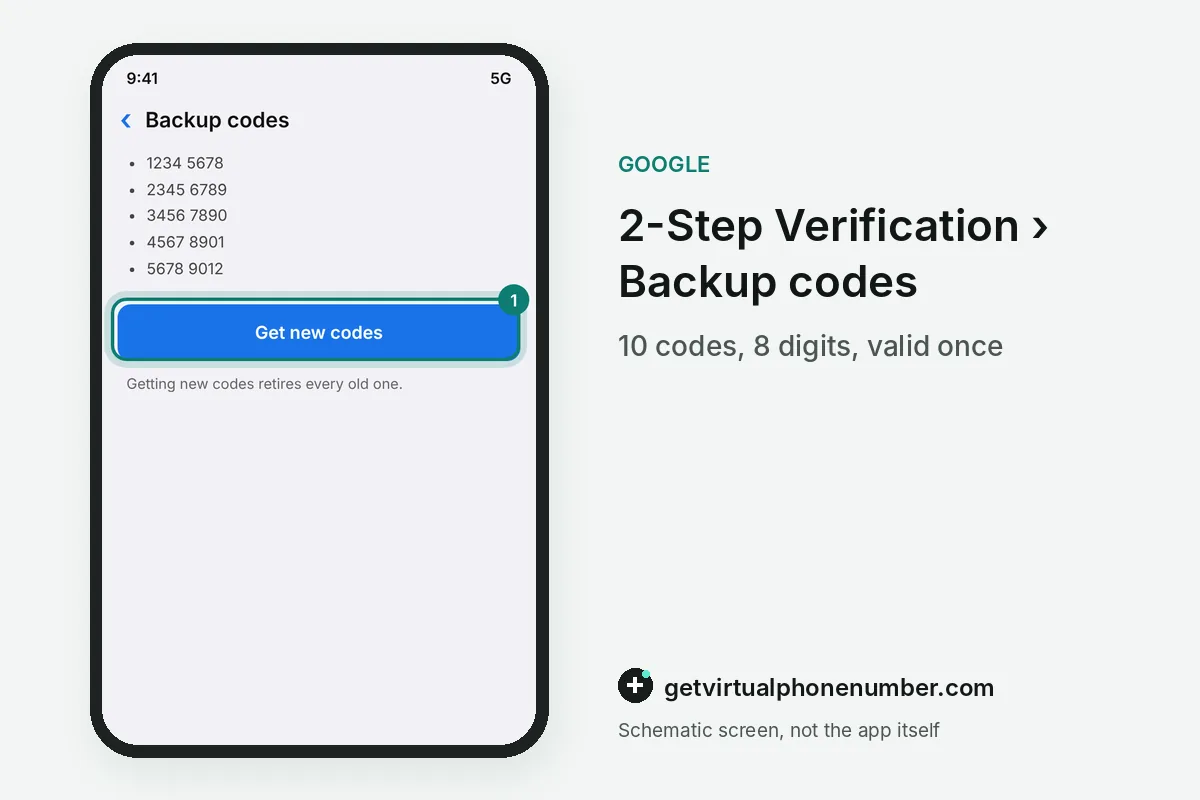
Google 2-Step Verification backup codes come in a set of 10, each 8 digits long and valid once. The Backup codes entry on the 2-Step Verification page offers print, download, refresh and delete. Refresh retires every old code at once.
Keep the 2-Step Verification printout where you keep a passport. A downloaded set is named Backup-codes- plus your username, so the file is easy to search for. At sign-in, Try another way leads to the field for an unused 8-digit code.
For example, a printed set of 10 Google backup codes covers 10 sign-ins to your Google Account without your phone. Refresh the set once only 2 codes are left.
Who needs Google Advanced Protection?
Google Advanced Protection is the strictest 2-Step Verification setting Google offers, built for journalists, activists and others facing targeted attacks. It makes a security key the required second step, adds protection against phishing and blocks unsecure apps. Enrollment is optional.
Google Advanced Protection trades convenience for that strength. Under Advanced Protection, 2-Step Verification accepts only a backup security key when the main one is lost, and the backup codes page stops offering downloads. Plan on two keys from the first day.
Is Gmail authentication the same as 2-Step Verification?
Gmail authentication can mean two things, and only one of them is 2-Step Verification on a Google Account. The other is message authentication, where Gmail checks that an email really comes from the domain it names. A question mark next to the sender's name means that check failed, so go slow on replies and attachments.
To see the verdict, open the email on a computer and click the Down arrow below the sender's name. Mailed by and Signed by lines with the sending domain mean the message passed SPF or DKIM, the two checks behind it. None of this touches your sign-in, which only 2SV guards.
How do you add Google Authenticator?
You add Google Authenticator from the 2-Step Verification page by tapping Set up authenticator, or Get Started on some devices. The app may take up to 7 days to appear as a 2SV option. That delay gives you time to react if someone else added it.
Authenticator works with no internet connection or mobile service. Since version 6.0 on Android and 4.0 on iOS, it can sync entries through your Google sign-in, encrypted in transit and at rest. Privacy Screen, under Menu and Settings, adds a PIN, pattern or biometric check before the app opens.
What goes wrong with Google 2-Step Verification?
The classic Google 2-Step Verification mistake is trusting one method. Pair Google prompts with a security key or printed backup codes, and tick Don't ask again only on a computer that never leaves your desk. A broken device then never forces the Google account recovery form.
Never hand a 2-Step Verification code to anyone. Google states it will not call to verify a code and asks for backup codes only at sign-in, so such a request signals the takeovers in our hacked Gmail guide.
Google 2-Step Verification fails its purpose when the second step is shared. Keep shared lines like our Gmail numbers for test sign-ups, and bind 2SV to your own SIM or a private number (coming soon).
Turn on 2-Step Verification in your Google Account
- Open your Google AccountGo to myaccount.google.com, or tap your profile picture in Gmail and choose Manage your Google Account.
- Open Security & sign-inUnder How you sign in to Google, find the 2-Step Verification entry.
- Select Turn onChoose Turn on 2-Step Verification and follow the on-screen steps.
- Add a backupSave backup codes or register a security key before you close the page.
Sources
- Turn on 2-Step Verification - Android - Google Account Help
- Get verification codes with Google Authenticator - Android - Google Account Help
- Authentication Tools for Secure Sign-In - Google Safety Center
- Recover an account protected by 2-Step Verification | Security & data protection | Google Workspace Help
- Sign in with backup codes - Computer - Google Account Help
- Fix common issues with 2-Step Verification - Google Account Help
 Canada
 United States
 Netherlands
 Sweden
 Algeria
 Philippines
 Sri Lanka
 Slovenia
 United Kingdom