Gmail · Second account · Facts verified 3 October 2026
New Gmail login with another account: add, switch and remove logins
A new Gmail login with another account means signing in to a second Google account next to the first, so you can switch inboxes without logging out. It works in a browser, in the Gmail app and on Android. Below are the steps for each, how the default account behaves and how to remove a login again.
How do you add another account in the Gmail app?
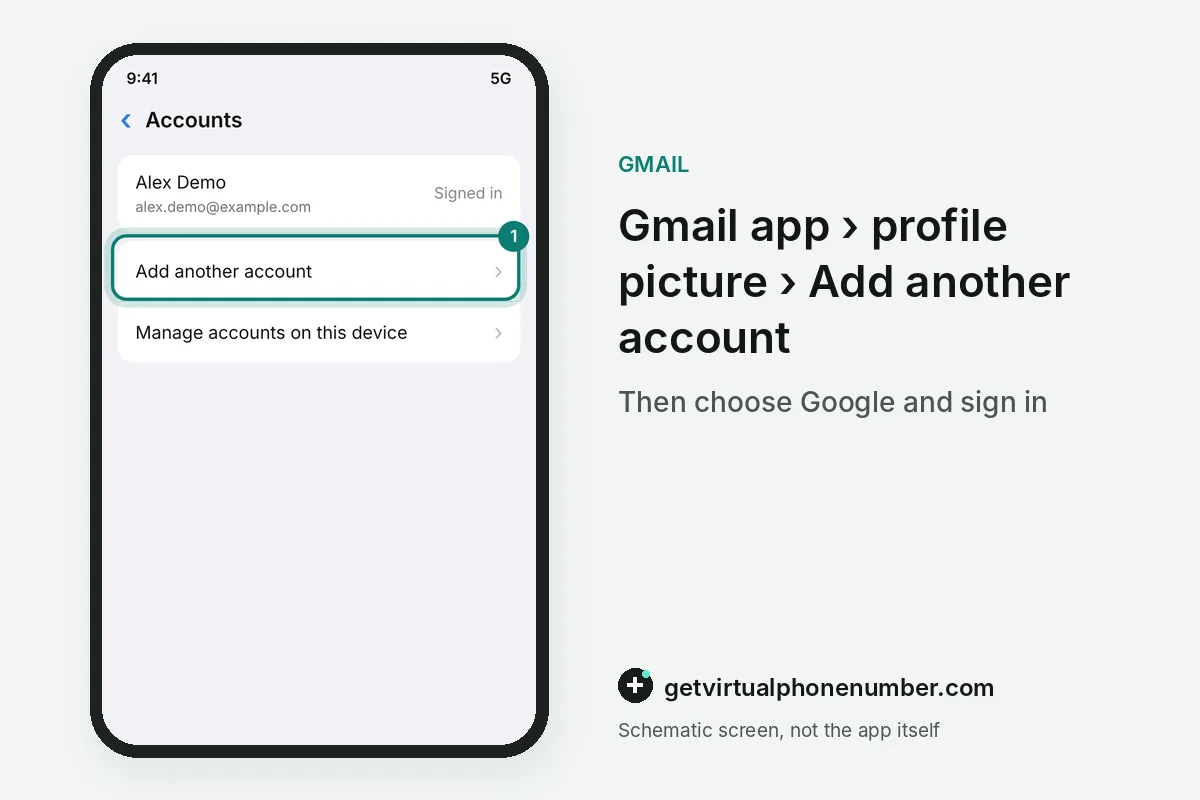
For a new Gmail login with another account in the app on Android, iPhone or iPad, tap Profile in the search bar, then Add another account and Google. Follow the sign-in steps, and if that login uses 2-Step Verification, approve the prompt on your device. Five addresses fit.
Switching between that login and another account takes one tap on Profile, and the app keeps both signed in. Removing either later happens under Manage accounts on this device.
How do you add a second Google account to an Android phone?
You add a second Google account to an Android phone in the Settings app under Passwords & accounts, then Add account and Google. Its email, contacts and calendar events sync to the phone as soon as you sign in. Sync starts at once.
Some phones name the menu Users & accounts or Manage accounts, and Android may ask for your pattern, PIN or password first. Lending the phone to a friend works better through a guest or a separate user than through an extra account.
Which login is the default account?
The default account is usually the first one you signed in with, and on phones it can depend on the system and apps. When Google cannot tell which login you mean, such as in a fresh browser window, it applies settings from the default account. Check before you buy.
The default account's settings cover Web & App Activity and ads personalization, and Google Play may show its country. Switch to the right Gmail login before you browse the Play Store or change settings.
How do you log in to another Gmail account?
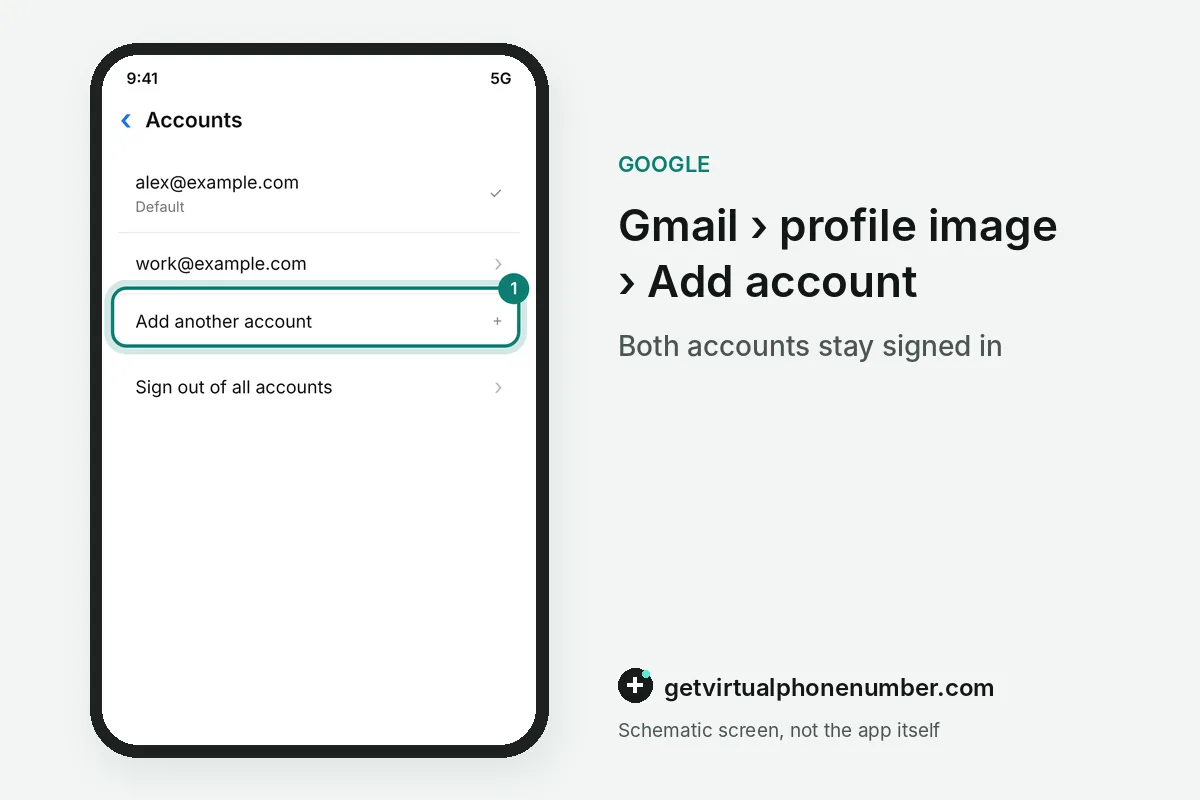
You log in to another Gmail account on a computer by selecting your profile image at the top right of Gmail and choosing Add account. Sign in to the second account, and both stay signed in so you can switch without logging out. Both stay open.
To jump between them later, open the same profile menu and pick the account you want. Each login keeps its own settings, although a few can carry over from the default account.
How do you sign out of one Gmail account and keep the other?
On the web, Remove an account takes one login off the sign-in page. Open myaccount.google.com, select your profile picture, choose Sign out or Sign out of all accounts, then Remove an account and click Remove next to the login. Repeat it per browser.
Repeat this in every browser where the account was used, such as Firefox or Safari. In the Gmail app, Manage accounts on this device and Remove from this device take a login off the phone without touching the account.
How do Chrome profiles keep two Gmail accounts apart?
Chrome profiles give each Gmail account its own window, bookmarks, history and saved passwords. A second Chrome profile also gets its own default account, so the settings mix-up described above never starts.
Add one through the profile icon at the top right of Chrome and choose Add. For example, 1 personal and 1 work account set up as 2 Chrome profiles open the right inbox in each window without any switching.
Gmail can also reply from another address you own without a second login. In Settings, See all settings, Accounts and Import, the Send mail as entry adds that address after a confirmation email. Each Chrome profile can also sync to its own Google Account, so passwords saved in one never fill forms in the other.
What goes wrong with a second Gmail login?
The common mistake with a second Gmail login is giving it no recovery details because it feels temporary. Set a recovery email and phone on day one, or Google account recovery has nothing to work with later.
Another is signing a second account up with a shared line. Our Gmail numbers are public and suit a throwaway test account, while a private number (coming soon) keeps your main number private on a second Gmail you plan to keep.
Add another account in Gmail on a computer
- Open GmailSign in to Gmail with your first account in a browser.
- Open the profile menuSelect your profile image or initial at the top right.
- Choose Add accountPick Add account and follow the sign-in steps for the second login.
- Switch accountsOpen the same menu any time and select the account you want.
Sources
- Sign in to multiple accounts at once - Computer - Google Account Help
- Add or remove an account on Android - Android Help
- How to sign in with another account in Gmail
- Google rolling out new multiple account login page for Gmail
- Create a Google Account - Computer - Google Account Help
- Add another email account in the Gmail app - iPhone & iPad - Gmail Help
 Canada
 United States
 Netherlands
 Sweden
 Algeria
 Philippines
 Sri Lanka
 Slovenia
 United Kingdom