Netflix · Sign out of all devices · Reviewed 3 October 2026
How to Sign Out of All Devices on Netflix
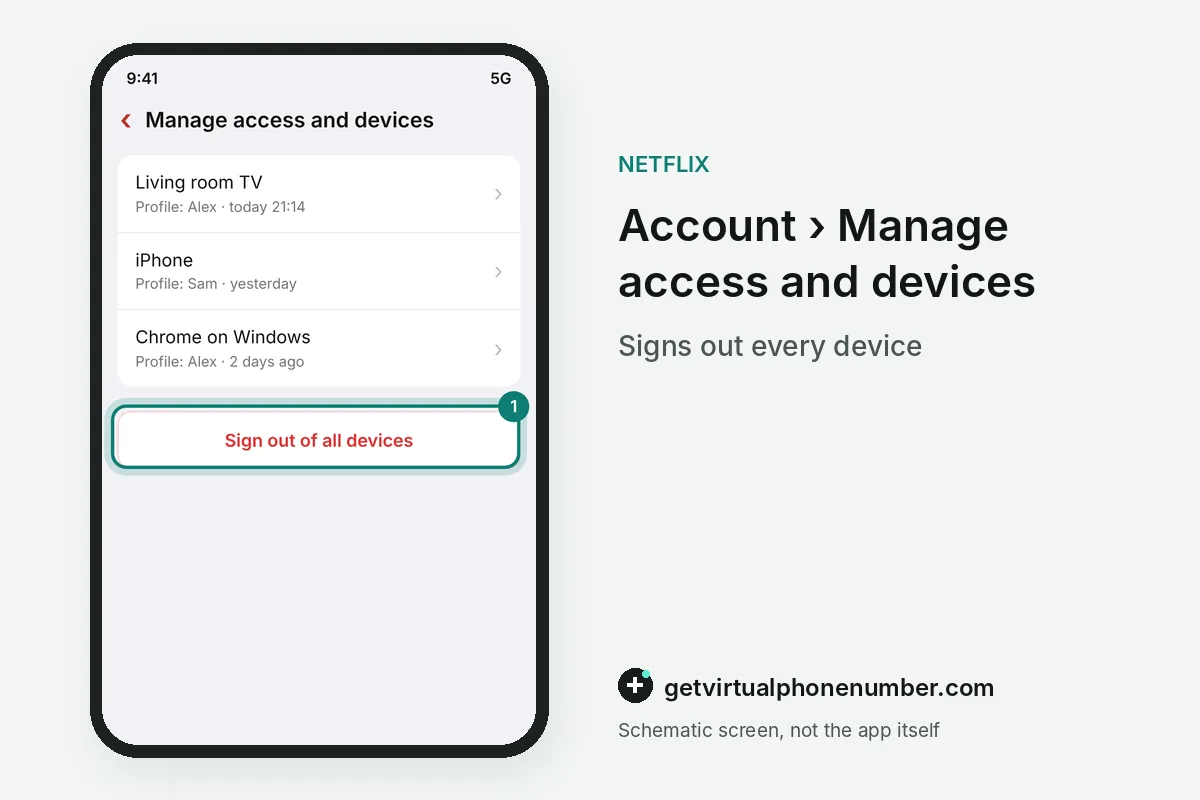
To sign out of all devices on Netflix, go to the Account page, scroll down to Security and click Sign out of all devices. Every TV, phone and browser must then sign in again. The Manage access and devices page next to it can also sign out one single device.
How do you sign out of all devices on Netflix in a browser?
To sign out of all devices on Netflix in a browser, go to Netflix and log in to a non-kids profile. Kids profiles have no Account page. Scroll down to the Security section once the Account page is open, because the device controls sit there on the website.
Click your profile icon in the top-right corner of Netflix and select Account. Scroll down to Security and click Manage access and devices to sign out of devices.
Click Sign out of all devices at the bottom of the page. Click Sign out to confirm, and the request goes out to every Netflix session.
How do you sign out of all Netflix devices from the mobile app?
To sign out of all Netflix devices from the mobile app on iOS or Android, open the Netflix app and select a non-kids profile. Then tap My Netflix in the bottom-right corner. A hotel TV left signed in can be closed this way from your own phone in under a minute.
Tap the menu icon with three horizontal lines in the top-right corner, then tap Account. Scroll down to Security and tap Sign out of all devices, then confirm.
How do you sign out of one Netflix device?
To sign out of one Netflix device, open Manage access and devices, select the down arrow next to that device and choose Sign Out. Other devices stay signed in. The list shows the device type, the last profile that streamed on it and the date and time of the last viewing.
Signing out one device suits a lost tablet or a friend's TV. A suspected break-in calls for the full Netflix sign out of all devices and a new password.
Why is a device missing from Manage access and devices?
A device is missing from Manage access and devices when it has not streamed in 90 days. Games and Tudum use also hide it. Netflix says new devices may take up to 48 hours to appear. The Netflix app for Windows can show up as an Edge browser in the list.
Some guides say the sign-out takes up to 8 hours to reach every device. Netflix's help page gives 48 hours for new devices to appear, and Sign out of all devices still reaches devices the list does not display.
What happens when you sign out of all devices on Netflix?
When you sign out of all devices on Netflix, every connected device leaves the account, including your own phone and TV. Profiles stay untouched. Viewing history, My List and settings remain, and each device needs the email or phone number plus a code or password to come back.
For example, a family with 4 TVs at home signs in on each of them again after a Netflix sign out of all devices. Pick a moment when everyone at home can do that.
Does signing out of all devices change the Netflix password?
Signing out of all devices does not change the Netflix password, so a person who knows the old password can sign back in at once. Change both together. If an unwanted user is on your account, change your Netflix password immediately after signing out, as Netflix advises.
The full routine for a break-in sits in Netflix account hacked. New sign-ins then need a fresh Netflix sign-in code, and our free numbers for Netflix stay test lines only.
Steps to sign out of all devices on Netflix
- Open AccountUse a non-kids profile on the website or tap My Netflix in the app.
- Choose Manage access and devicesIt sits in the Security section.
- Select Sign out of all devicesScroll to the bottom of the page.
- Confirm and change the passwordConfirm the sign-out, then set a new password.
 Algeria
 Netherlands
 Moldova
 Sweden
 Canada
 United States
 United Kingdom