Netflix · Device not in household · Updated 3 October 2026
Your Device Isn't Part of the Netflix Household: How to Fix It
The message “Your device isn't part of the Netflix Household” means Netflix could not link the device to the Wi-Fi of the account's main home. The account owner fixes it with Update Netflix Household, a temporary access code or Confirm Device.
Why does Netflix say your device isn't part of the Netflix Household?
Netflix says your device isn't part of the Netflix Household when the device streams from a network other than the household Wi-Fi. A Netflix Household is the set of devices online at the main place where you watch.
Only one Wi-Fi network belongs to a household, so a second home, a dorm or a phone hotspot triggers the check. Netflix asks members to open the app on the home Wi-Fi at least once a month to avoid the message.
How do you make a device part of your Netflix Household?
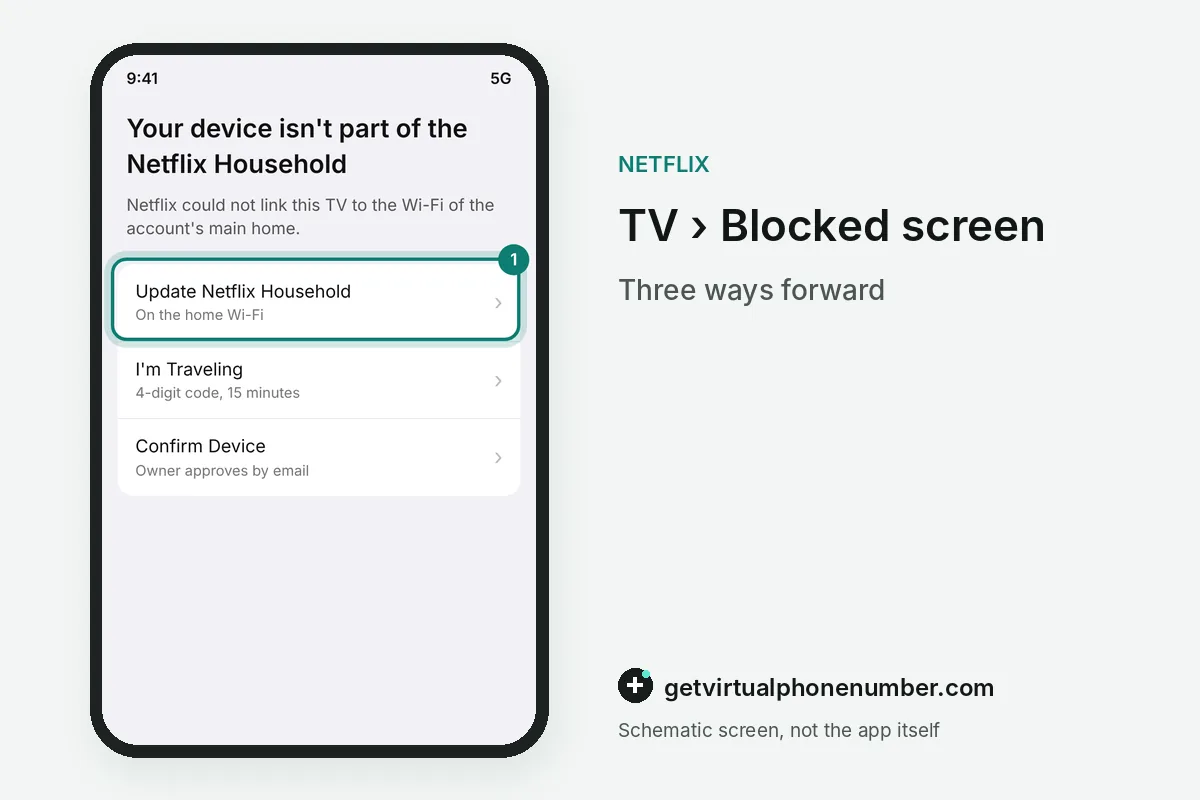
To make a device part of your Netflix Household, select Update Netflix Household on a TV connected to the home Wi-Fi. The option sits on the blocked message or under Get Help or Settings, then Manage Netflix Household.
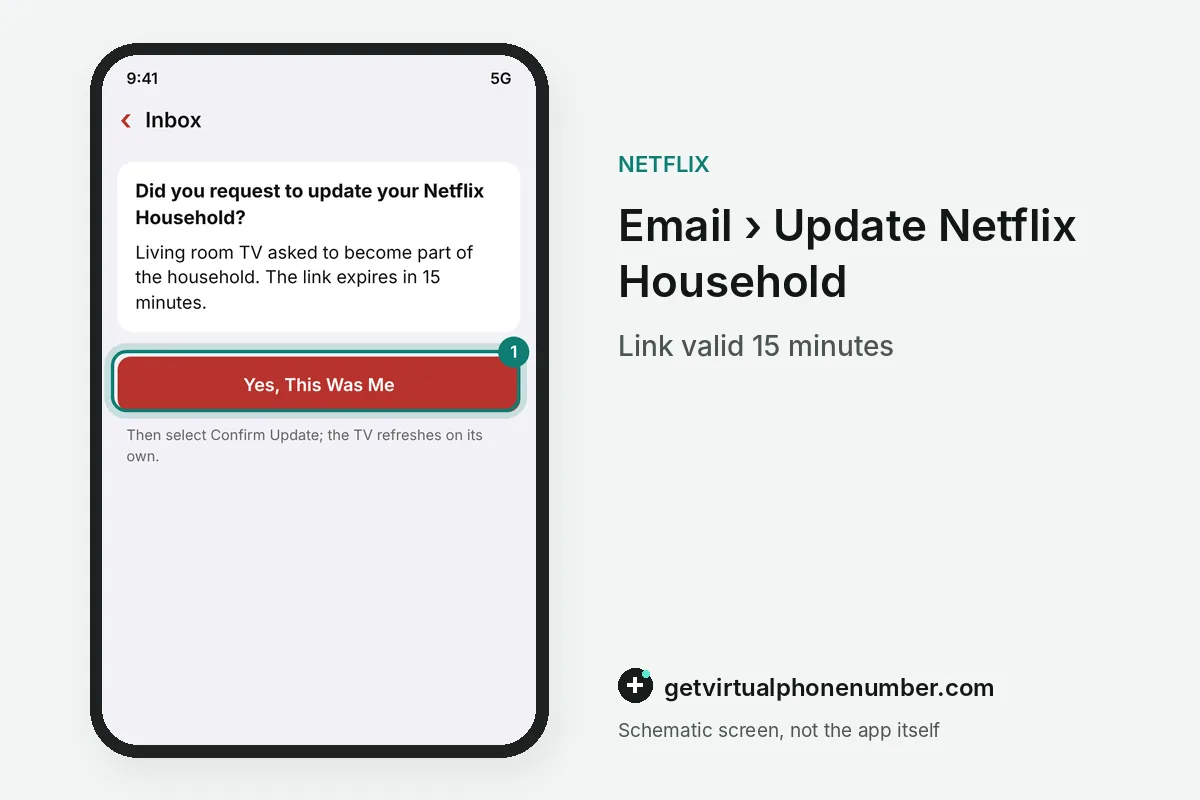
In the Netflix Household menu, select Send Email, open the link and tap Yes, This Was Me, then Confirm Update. The device refreshes on its own. Verification links expire after 15 minutes.
Phones and computers join through a TV: connect them to the same Wi-Fi and update the household from that TV. Then restart the Netflix app on each phone, tablet or laptop that showed the message. Only the owner can approve. The email goes to the owner's address.
How do you watch Netflix on a device outside your household?
To watch Netflix on a device outside your household, select I'm Traveling or Watch Temporarily on the blocked screen and request a temporary access code. Netflix emails the account owner a link, and the 4-digit code lasts 15 minutes.
For example, an owner who asks for a code at 20:00 must type it on the hotel TV before 20:15. Netflix limits how many codes one device can request per day, and too many wrong entries block the TV or device for 24 hours. Travel rules sit in the Netflix household guide.
Why does Netflix say you're not on your household Wi-Fi when you are?
Netflix says you are not on your household Wi-Fi when a new router or a second network hides the home connection. Only one Wi-Fi network can be tied to a household, and a device on any other network needs verification.
Connect the device to the main home network, then select Update Netflix Household again from a TV. Confirm Device is the third option on the blocked screen. Netflix emails the owner. One tap approves the device.
Can you use Netflix at two different houses?
You can use Netflix at two different houses only through one household plus travel codes, or by paying for an extra member. An extra member gets an own account, password and profile and must be in the country where the owner signed up.
An extra member slot needs a Standard or Premium plan, and that member's device stays outside your Netflix Household. Each extra member watches on 1 supported device at a time, and the owner can swap members up to 2 times per calendar month.
What if you are not on the Netflix account at all?
If you are not an extra member and the device is away from the main household, Netflix offers Create an Account on the blocked screen. Your own membership ends the message on that device.
The create a Netflix account guide shows the sign-up steps. Our free numbers for Netflix stay test lines, because their inbox is public.
Steps to fix “Your device isn't part of the Netflix Household”
- Use a TV on the home Wi-FiThe update works from a TV only.
- Open Get Help or SettingsThen select Manage Netflix Household.
- Select Update Netflix HouseholdChoose Send Email.
- Confirm in the emailTap Yes, This Was Me, then Confirm Update within 15 minutes.
 Slovenia
 United Kingdom