Microsoft · Account security · Updated 3 October 2026
Microsoft account security: the Security page, real alerts and fakes
Microsoft account security is the set of alerts, sign-in checks and activity records that protect a personal Outlook, Hotmail or Xbox login, managed from the Security tab at account.microsoft.com/security. Real alerts arrive from @accountprotection.microsoft.com by email and from 69525 by text. Anything else deserves a second look before you click.
Where is the Microsoft account security page?
The account security page sits at account.microsoft.com/security, under the Security tab of your account dashboard. Typing that address yourself is safer than following a link in a message, since a fake page can copy the look of the real one. Bookmark the security page once.
The Security page is also the starting point for Recent activity and Change password. Activity history you want to view or delete sits apart, at account.microsoft.com/privacy/activity-history.
Sign out everywhere, on the same Security page, ends sessions on every device. Microsoft notes that it can take up to 24 hours to apply. Find my device, under Devices, locates and locks a lost Windows PC.
How do you know a Microsoft security alert email is real?
A real Microsoft security alert email comes from the account team at account-security-noreply@accountprotection.microsoft.com. Microsoft uses the @accountprotection.microsoft.com domain for two-step codes, password change notices and other account updates. Any other domain is a warning sign.
Do a sender check before trusting any account security email, then confirm that the partial account name in the message is yours and that you asked for a code. Outlook adds its own signal: a question mark in the sender photo means it could not verify who sent the message.
Are security texts from 69525 genuine?
Account security texts from 69525 are genuine, since Microsoft uses that short number for verification codes and account alerts. Some messages show Microsoft as the sender name, and in both cases 69525 is the sender, never the code you type.
Real links in these texts begin with aka.ms, and aka.ms/alca, for example, opens your activity page at account.live.com/activity. When a text carries a link, Microsoft also includes part of your account email so you can match it.
| Signal | Genuine Microsoft message | Red flag |
|---|---|---|
| Email sender | @accountprotection.microsoft.com | A spoofed or different sender domain |
| Text sender | 69525 or Microsoft | A code or link you never requested |
| Links in texts | Start with aka.ms | Any link that starts with something else |
| Support contact | Never unsolicited | An unrequested offer to fix your account |
What should you do after an unusual sign-in alert?
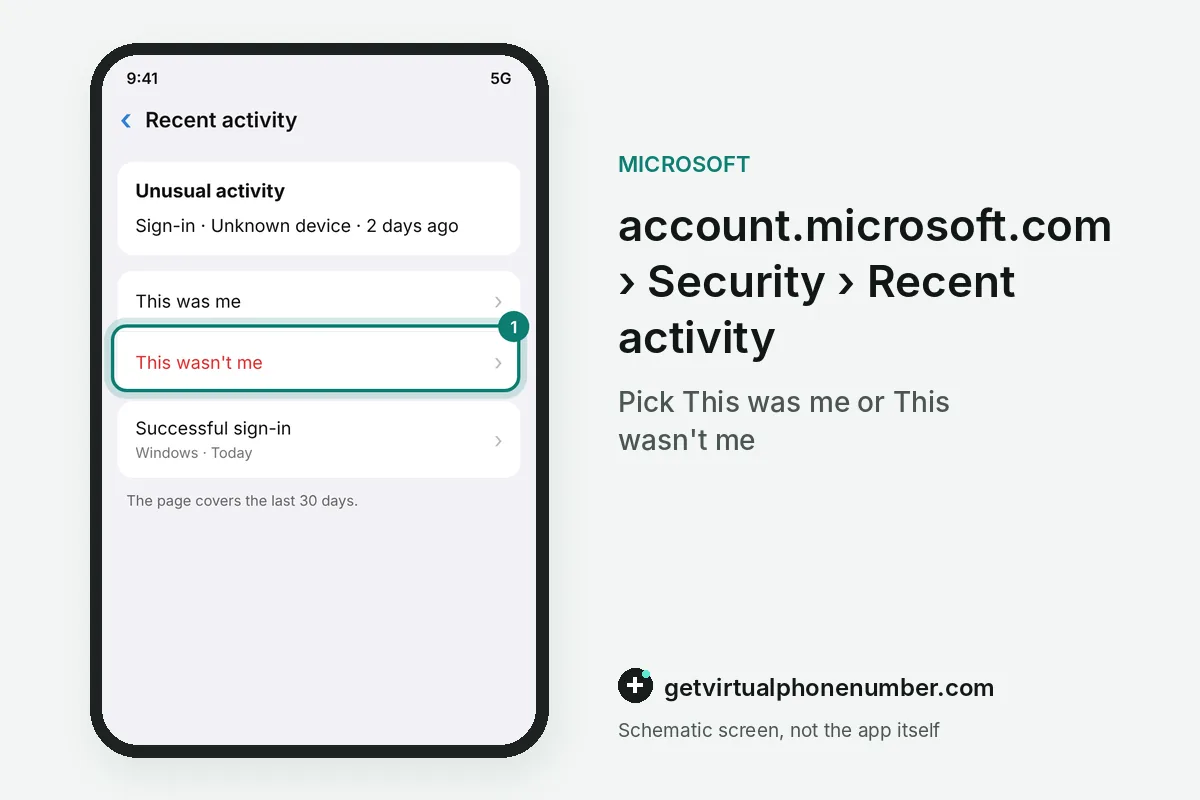
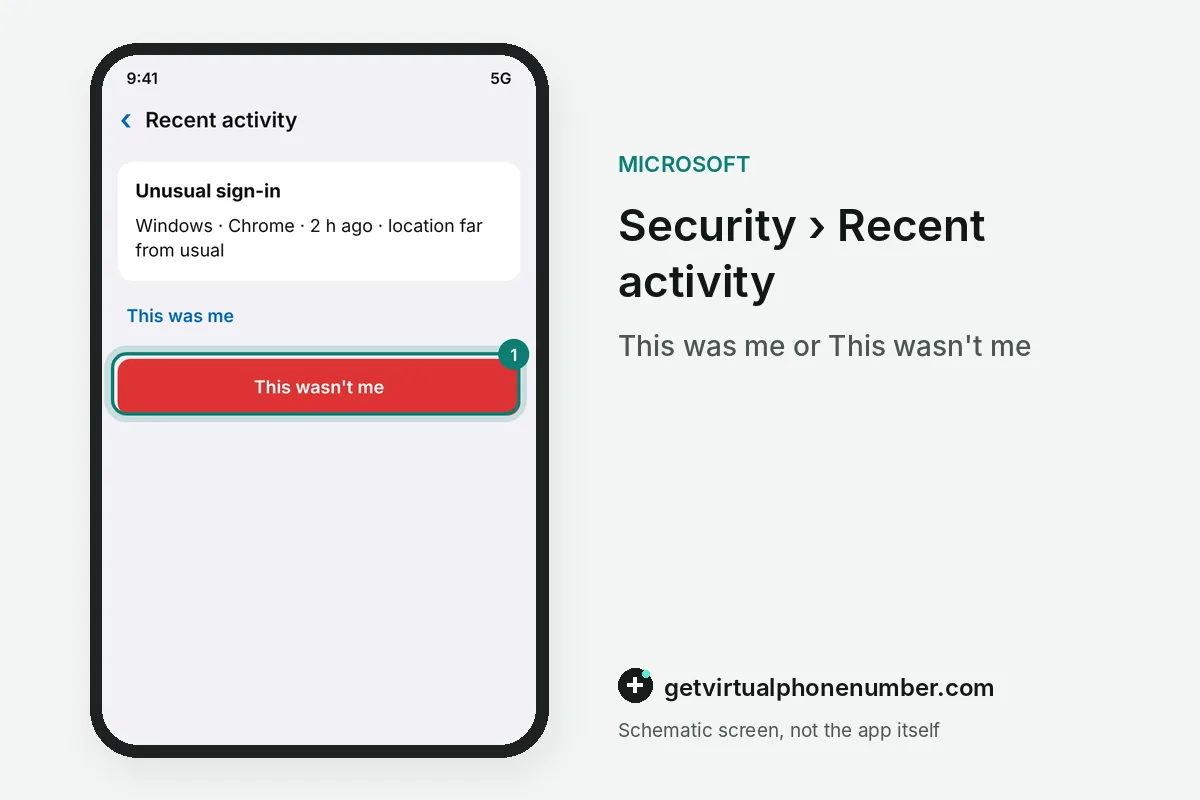
After an unusual sign-in alert, open the Recent activity page from your account security settings and review the last 30 days. Expand each item in the Unusual activity section and answer This was me or This wasn't me. Those two buttons only appear in that section.
Each entry on the account security activity page opens up to show clues about the sign-in. You see the IP address of the device, a map with a more specific location, the device type or operating system, and the browser or app used. Those details usually settle whether the event was yours.
Some account security alerts are false alarms with a simple cause. Mobile networks route traffic through other places, so a phone sign-in can show a city you never visited. Travel and new devices trigger alerts too.
For example, a Microsoft account security alert that shows a city 300 km away can come from your own phone on mobile data. Check the device type and browser before you answer This wasn't me.
Is that security alert a scam?
An account security alert is likely a scam when it offers technical support you never asked for or wants personal details through a link. Microsoft never proactively reaches out with unsolicited technical support, so any message offering it should be treated as fake.
An unrequested code is a different case. It can mean someone is trying to get into your account, or that a stranger mistyped their own sign-in details and hit yours. Keep the code to yourself and check the account by typing account.microsoft.com or account.live.com into the browser.
Reporting a fake alert in Outlook.com
To report a fake account security alert in Outlook.com, select the message, then choose Report and Report phishing above the reading pane. Reporting flags the sender but does not block it. Block the sender separately.
What goes wrong with Microsoft account security alerts?
The riskiest account security habit is acting on an alert from inside the message itself. Open the account in a fresh tab, check Recent activity and answer the Unusual activity prompts there. Your answer helps Microsoft rule out false threats and block unauthorized access sooner.
Stale alert contacts are the second Microsoft account security mistake, because alerts only reach the security info on file. Text alerts go only to the primary phone number, so review that list whenever a number or inbox changes.
Keep every alert destination private on a Microsoft account you rely on: a public line is readable by every visitor, while a private number (coming soon) is yours alone. A free Microsoft number suits a throwaway test login only, and the two-step verification guide covers the rest.
Which phishing tricks copy Microsoft security alerts?
Phishing emails copy account security alerts by spoofing the sender address so the message looks safe. Outlook checks whether a sender is who it claims to be and moves malicious mail to Junk, and an unverified sender gets a question mark instead of a photo.
Microsoft lists a few lures that show up again and again in phishing mail. One promises a reward, such as a tax refund behind a link. Another poses as a shared document or an invoice for an order you never placed, then asks for your email address and password to open it.
Check Microsoft account security after a suspicious alert
- Skip the linkClose the message and type account.microsoft.com into a new browser tab, so no link in the alert ever gets a click.
- Open the Security tabSign in, go to Security and open the Recent activity page, which covers the last 30 days.
- Judge each eventExpand items under Unusual activity and pick This was me or This wasn't me.
- Change the passwordIf anything was not you, set a new strong password from the Security page.
- Tidy your methodsRemove all trusted devices, then delete any old security info you do not control anymore or recognize.
Sources
- Microsoft account | Configuración de privacidad de la cuenta de Microsoft
- Microsoft account | Sign In or Create Your Account Today – Microsoft
- Microsoft account security info & verification codes | Microsoft Support
- Microsoft account | Microsoft Account Privacy Settings
- What happens if there's an unusual sign-in to your account | Microsoft Support
- What is the Recent activity page? | Microsoft Support
 Canada
 United States
 Netherlands
 Sweden
 Algeria
 Philippines
 Sri Lanka
 Slovenia
 United Kingdom