Facebook · Account security · Reviewed 3 October 2026
Facebook security: settings, checkups, passkeys and security keys
Facebook security settings live under Password and security in Accounts Center, where Security Checkup reviews your account and suggests fixes. The strongest protections there are passkeys and physical security keys, and high-risk accounts may be required to turn on Advanced Protection.
Where do you find Facebook security settings?
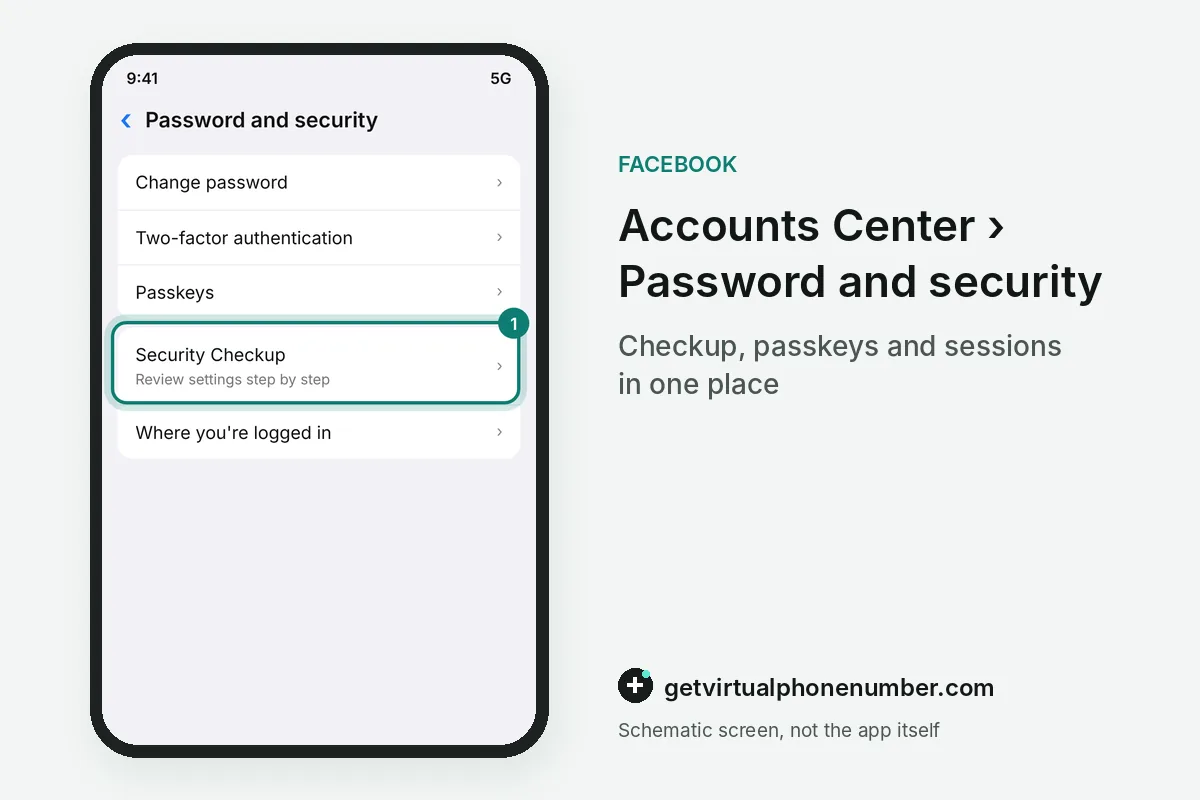
Facebook security settings sit behind your profile picture: click Settings & privacy, then Settings, then Accounts Center, then Password and security. Some accounts show Password and security directly instead of Accounts Center.
The Password and security screen holds the password change, two-factor authentication, passkeys and Advanced Protection. Login alerts and the Where you're logged in list belong to the same security area.
Which Facebook login protection is strongest?
Physical security keys and passkeys are the strongest Facebook login protections, because both resist phishing better than a password or a texted code. The table compares the options from weakest to strongest.
| Protection | How it works | Watch out for |
|---|---|---|
| Password | Something you know | Reuse on other sites |
| Text message code | A code sent by SMS | A number you do not control |
| Authentication app | Codes generated on your phone | Losing the phone without a backup |
| Passkey | Unique to each account | Needs setting up on each account |
| Security key | A physical U2F or FIDO2 device | Losing the key without a second method |
When does a second number put Facebook security at risk?
A second number works for Facebook security only if nobody else can read it. Codes sent to one of our free Facebook numbers land in a shared inbox that every visitor sees, so those lines suit throwaway test accounts only.
For a profile you keep, put the security phone on your own SIM card or a private number (coming soon), or skip SMS for an authentication app or a passkey. Codes that fail to arrive on a number you own have their own Facebook code checks, and Instagram owners can compare the Instagram security guide.
How does Security Checkup work?
Security Checkup reviews your Meta Account and recommends actions, such as a new password, two-factor authentication or login alerts. You must be logged in to start it.
Security Checkup runs on a computer or in the latest Facebook app for Android or iOS. Login alerts then warn you whenever someone tries to log in from a computer or mobile device that Facebook does not recognize.
How do security keys work on Facebook?
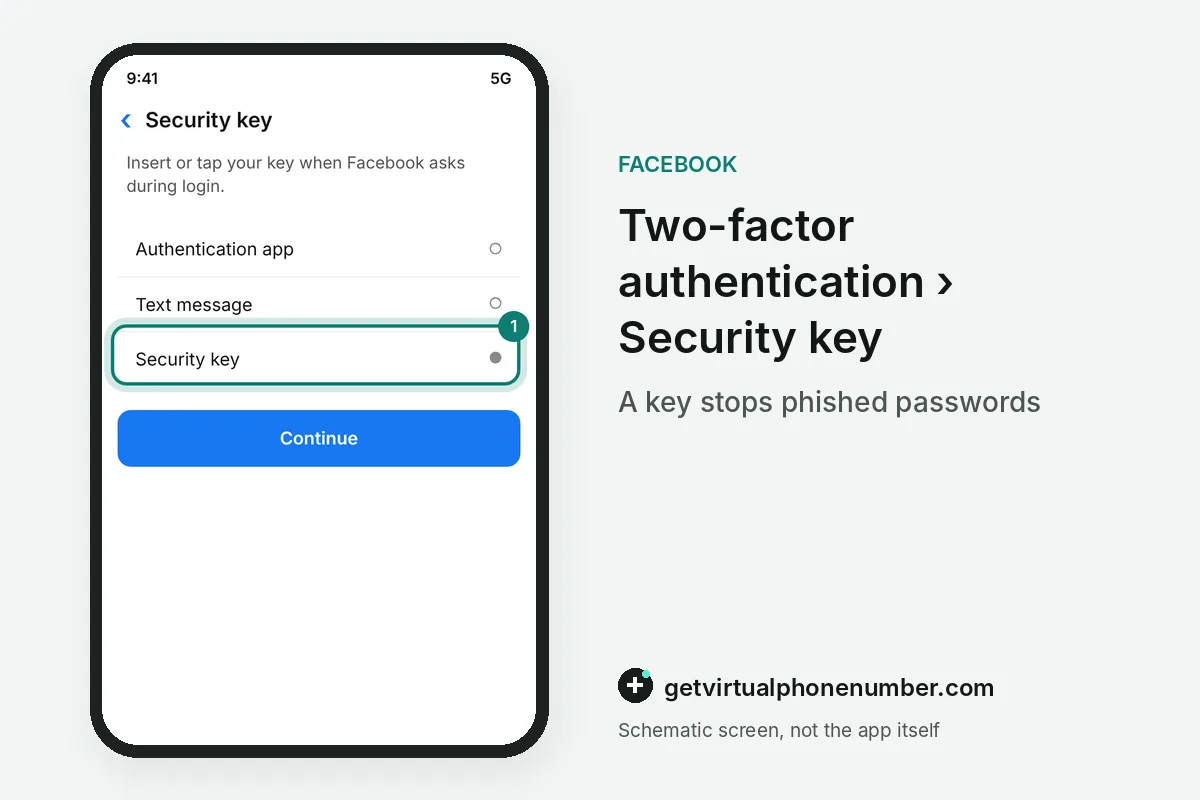
A security key is a small hardware device that must approve Facebook logins from an unrecognized browser or device, so a stolen password alone gets nowhere. Keys plug into a USB or Lightning port or work held near the device, and they run in Chrome, Opera, Firefox, Edge and Safari. Keep a second key or another method in case one goes missing.
For example, a Facebook admin with 2 security keys keeps 1 in a drawer as the spare for account security. A lost key then never ends access. Simple.
What is Advanced Protection on Facebook?
Advanced Protection is a Facebook security mode for high-risk accounts such as page admins, large creators, civic figures and Meta Verified subscribers. It demands passkeys, two-factor authentication or strong passwords and watches for hacking threats.
Turn it on under Password and security, then Advanced Protection, then Fix Now. Required accounts cannot unenroll, and mail about the mode comes from security@facebookmail.com.
Run Facebook Security Checkup
- Log inUse a computer or the latest Facebook app for Android or iOS.
- Open securityGo to Settings & privacy, Settings, Accounts Center, then Password and security.
- Start the checkupOpen Security Checkup and follow its recommendations.
- Add a strong loginSet up a passkey, a security key or two-factor authentication.
- Review sessionsLog out of any device you do not recognize.
Sources
- Keep your Facebook profile secure | Facebook Help Center
- Using Security Checkup to add security to your Meta Account | Facebook Help Center
- Security Tips and Features | Facebook Help Center
- How to enable Advanced Protection on Facebook | Facebook Help Center
- Secure your Instagram account | Instagram Help Center
- How security keys work on Facebook | Facebook Help Center
 Canada
 United States
 Netherlands
 Sweden
 Algeria
 Philippines
 Sri Lanka
 Slovenia
 United Kingdom